Published
Trying Out WebMCP
Cloudflare announced they support WebMCP recently. It is not something you can rely on broadly yet, but I went ahead and added WebMCP support to this blog.

Contents
What WebMCP Is
Websites today are built on the assumption that a human looks at them and a human operates them. WebMCP is a standard that makes those same sites easier for AI agents to use.
An AI agent can already parse the DOM or drive a page with Playwright, even on a site built for humans. What WebMCP adds is a way for the agent to identify and use a page’s structure and features efficiently.
The WebMCP project describes it this way. https://github.com/webmachinelearning/webmcp
The motivation of WebMCP is to provide a lightweight way to adapt web content for use by AI agents.
An AI doing your shopping on an EC site or booking travel on your behalf, or pulling a list of related pages to find the one closest to what you asked for. My understanding is that this is the kind of operation it makes efficient.
This blog does not really have a feature I want to expose to AI agents, but it looked easy enough and it looked fun, so I gave it a try.
The Spec Is Not Settled Yet
If you add WebMCP support right now, be aware that the spec changes frequently. I suspect it will be a while before WebMCP carries production traffic in an enterprise.
For example, some syntax is already deprecated. https://developer.chrome.com/docs/ai/webmcp/imperative-api
navigator.modelContext is deprecated in Chrome 150. Use document.modelContext instead.
The Imperative API and the Declarative API
There are two ways to define a tool in WebMCP.
The imperative API defines tools in JavaScript by calling document.modelContext.registerTool(). It is not limited to form input; you can build all sorts of tools, including navigation and state management.
document.modelContext.registerTool({
  name: "search_posts",
  description: "Search published blog posts by keyword.",
  inputSchema: {
    type: "object",
    properties: { query: { type: "string" } },
    required: ["query"],
  },
  execute: async ({ query }) => ({
    content: [{ type: "text", text: JSON.stringify(search(query)) }],
  }),
});
The declarative API, on the other hand, just adds attributes to an existing HTML form. There is no JavaScript to write.
<form toolname="createSupportRequest"
      tooldescription="Submits a request for customer support.">
  <label for="firstName">First Name</label>
  <input type="text" name="firstName">

  <select name="select" required
    toolparamdescription="Determines what team this request is routed to.">
    <option value="Customer happiness team">Return my purchase.</option>
  </select>

  <button type="submit">Submit</button>
</form>
toolname sets the tool name, tooldescription the description, and toolparamdescription the description of each input. The browser converts this into the same structured representation it would produce for an imperative tool, then hands it to the agent.
For pages that already have a form, like a contact or booking form, the declarative API looks easier. It is limited to forms, though, so a feature with no form behind it, such as the post search I wanted here, has to be written imperatively.
Adding Support in Practice
There was no particular reason this had to be WebMCP, but I added a post search feature anyway.
This blog runs on Astro, so it generates a post list as JSON at build time, and WebMCP searches that.
Here is a sample of the generated JSON.
{
  "locale": "en",
  "url": "/en/posts/cross-root-certificate-digicert-g5/",
  "title": "What a Cross-Root Certificate Actually Is: Reading DigiCert's G5 Transition",
  "description": "How cross-root certificates work, and how to judge an existing G1 → G5 chain as DigiCert moves issuance to its G5 root hierarchies.",
  "date": "2026-08-05",
  "category": "security",
  "tags": ["tls", "digicert"],
  "keywords": ["intermediate certificate", "root certificate", "cross-root certificate", "PKI", "OpenSSL", "TLS"],
  "headings": ["Background on certificate chains", "How this post names DigiCert's root certificates"],
  "translationUrl": "/posts/cross-root-certificate-digicert-g5/"
}
Here is the WebMCP sample. It registers a tool that reads the JSON above and searches it.
if (!window.isSecureContext) return;
const provider = document.modelContext;
if (!provider || typeof provider.registerTool !== "function") return;

provider.registerTool({
  name: "search_eta404_posts",
  description:
    "Search published blog posts on ETA 404 by keyword, category, or tag. " +
    "Use this to find articles on this site instead of guessing URLs.",
  inputSchema: {
    type: "object",
    properties: {
      query: { type: "string", description: "Keywords to search for." },
      category: { type: "string", enum: ["web-development", "network", "security", "ai", "blog"] },
      tag: { type: "string", enum: ["astro", "cloudflare", "tls", "webmcp"] },
      locale: { type: "string", enum: ["ja", "en", "all"] },
      limit: { type: "integer", minimum: 1, maximum: 50 },
    },
  },
  annotations: { readOnlyHint: true },
  execute: async (input) => {
    const index = await loadIndex();
    const results = search(index.posts, input);

    return {
      content: [
        { type: "text", text: JSON.stringify({ count: results.length, results }) },
      ],
    };
  },
});
It seems worth setting annotations. readOnlyHint marks the tool as read-only, which lets agents call it without a confirmation prompt.
Trying WebMCP in Chrome
- Set
chrome://flags/#enable-webmcp-testingto Enabled and restart the browser with Relaunch - Open DevTools → the Application tab → select WebMCP in the sidebar
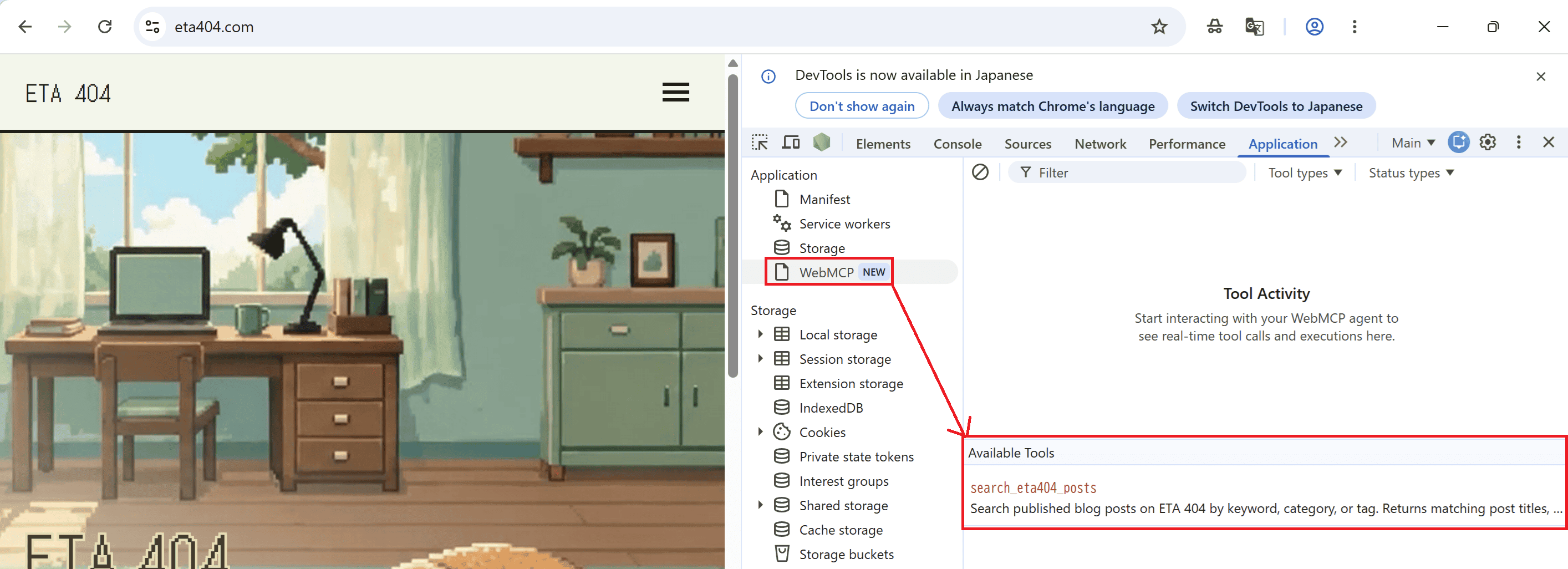
- Selecting a tool opens parameter inputs, so fill in some values and run it
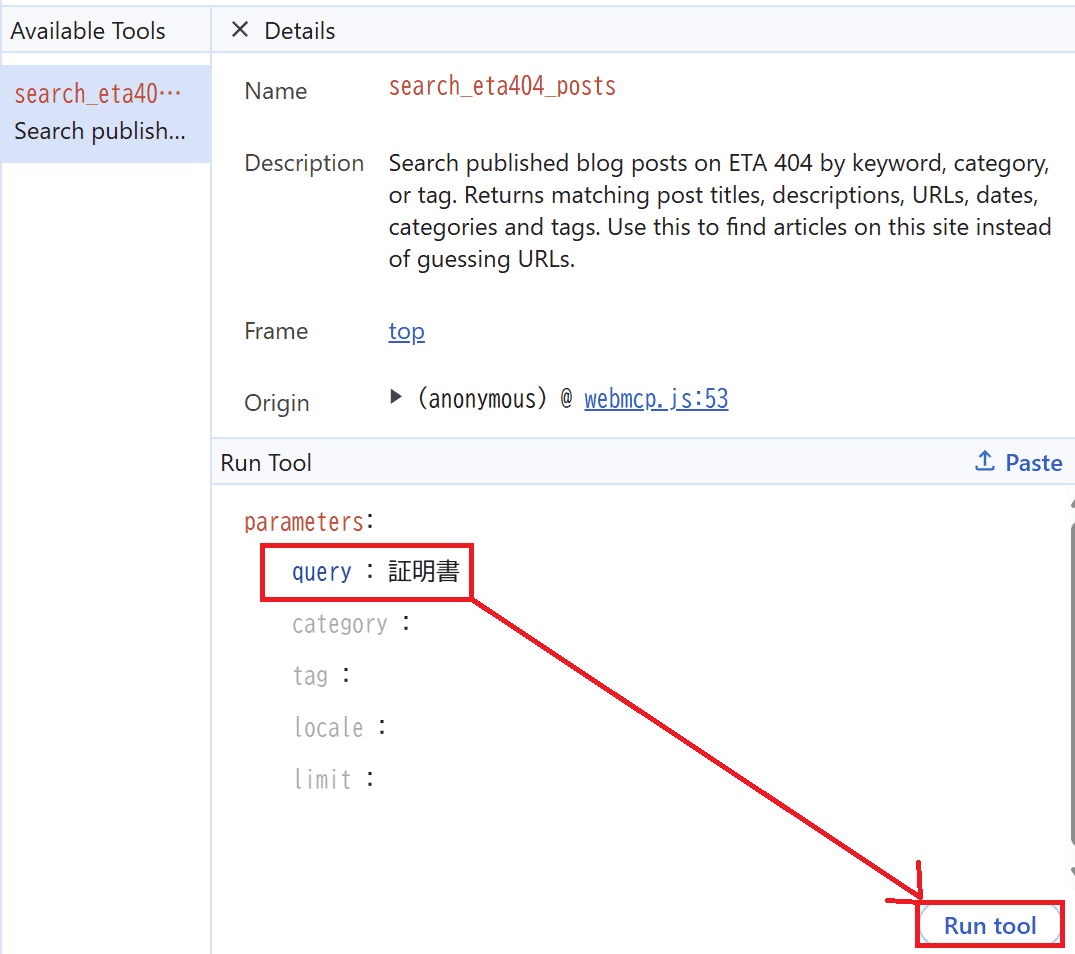
- Check the Output
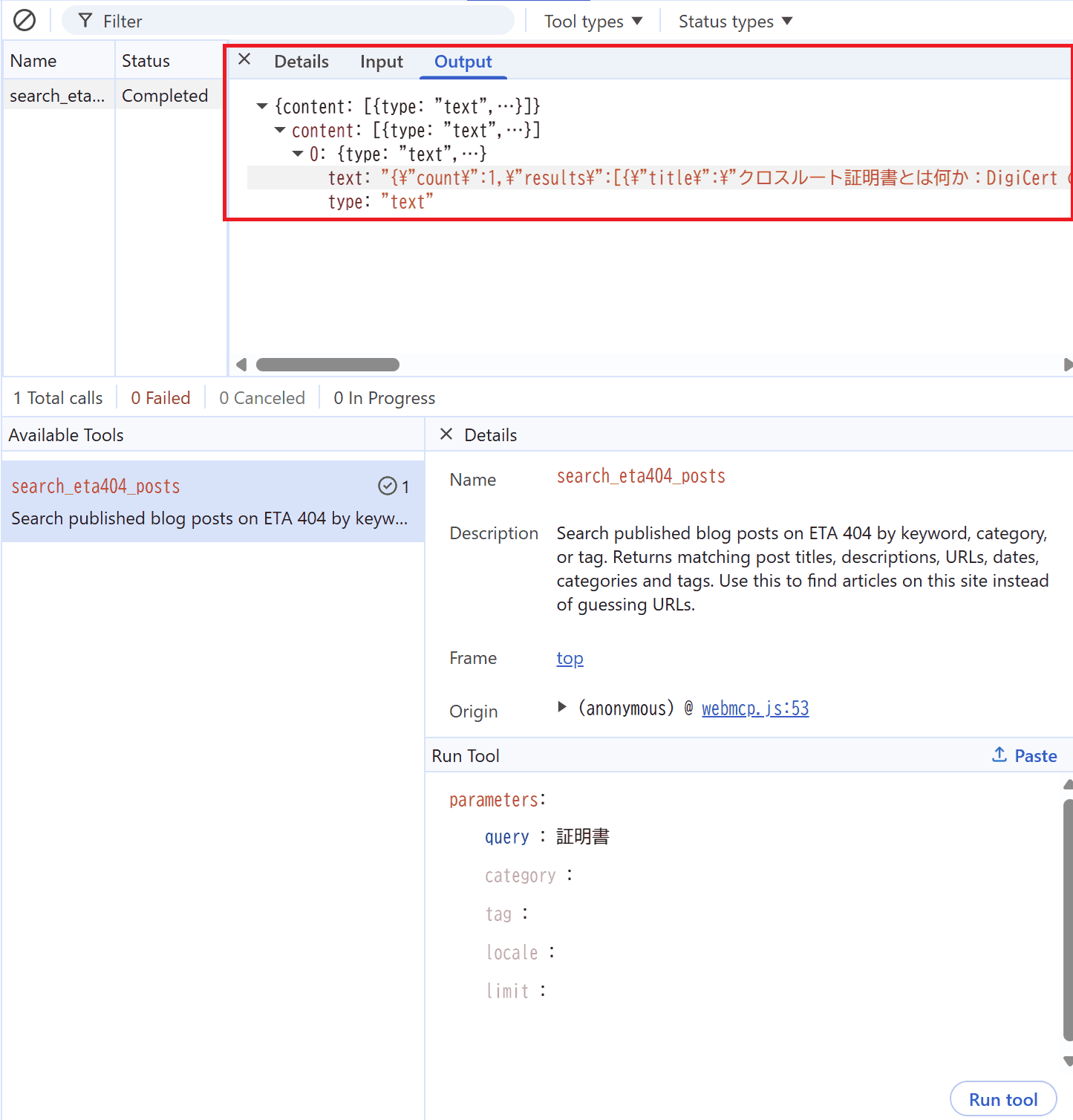
Trying it by hand rather defeats the point of WebMCP, but setting up an environment where an AI agent could call it looked like a hassle, so I did not go that far.
If Gemini in Chrome and friends pick it up properly down the line, I will give it another go.
Summary
For now the spec is still shifting, and my impression is that broad adoption is some way off. That said, I have a vague feeling it might end up mattering for SEO at some point, so I am glad I got to try it early.